User Guide & Practical Operations
Measure the World with Computer Vision & Algorithms · 3-Minute Quickstart
Powered by advanced iPhone / iPad camera sensors and ARKit spatial algorithms, AR Ruler PRO delivers centimeter-to-millimeter level accuracy for distance, polygon area, 3D volume, and material takeoffs. This guide helps you master professional accuracy tips and tool workflows.
1. 3-Step Quickstart Guide
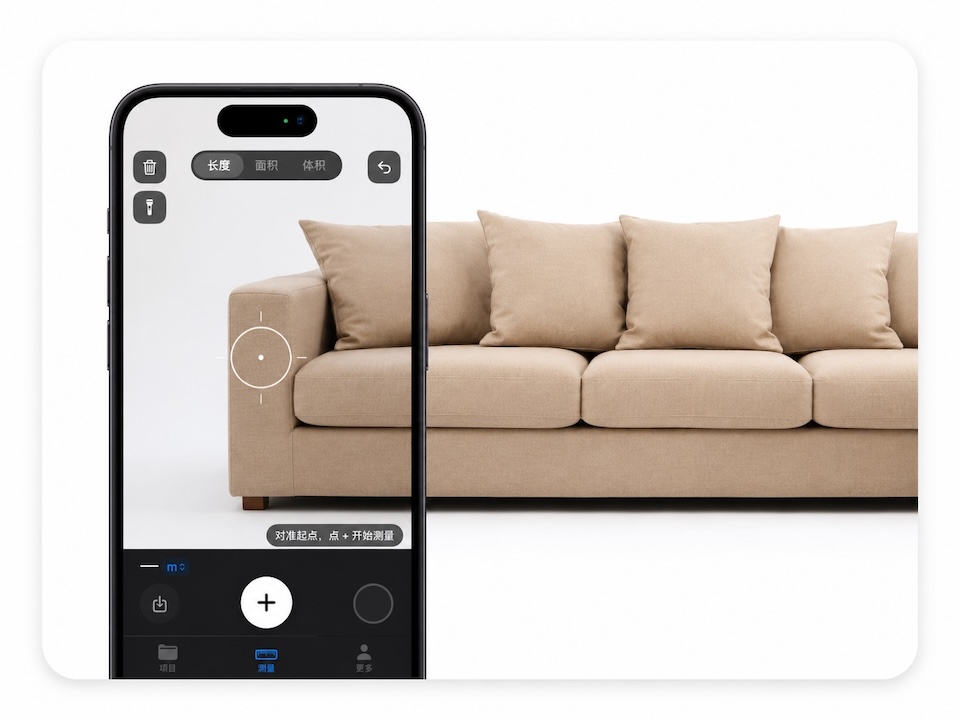
Scan surface and set starting point with 「+」
Open the measurement view, point your device at a target surface (table, floor, or wall), and move slowly for 1–2 seconds until the crosshair reticle appears. Align the reticle with the edge starting point and tap 「+」 to lock it.
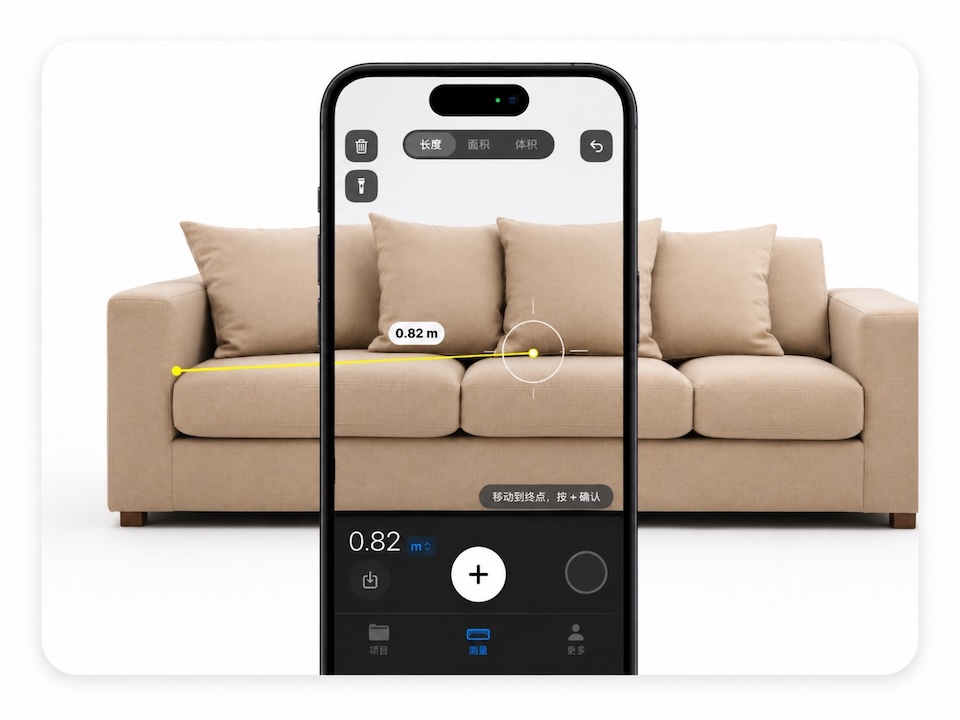
Pan your device toward the target endpoint
Pan smoothly across the surface. A dynamic virtual measuring tape will render in real time. Align the crosshair with the target endpoint and tap 「+」 again to finalize the distance.
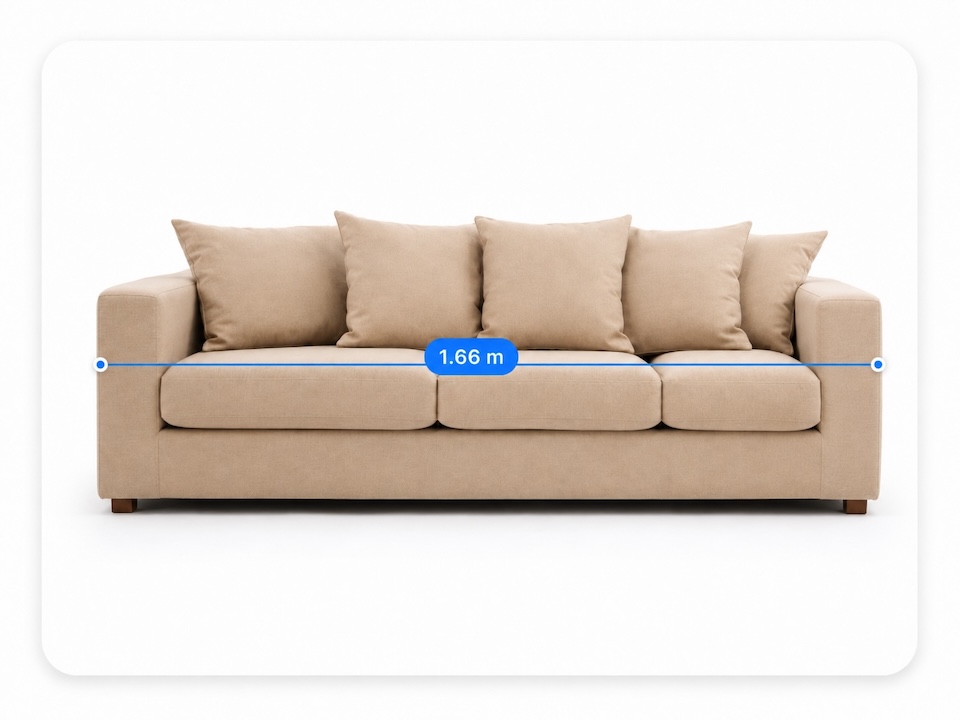
Tap Save to archive measurement records
Tap 「Save」 at the bottom to store the measurement under a project (e.g., "Living Room Renovation") and room partition for easy access, sharing, or CAD export.
2. 🛠 Professional Accuracy Secrets (Anti-Overshoot Guide)
Because AR spatial tracking relies on feature point reflections and depth parallax, following these principles eliminates over 70% of potential errors:
🎯 Tip 1: Inset points 1 cm inside boundaries (Prevent floor overshoots)
When measuring table edges or countertops, position the reticle 5mm–1cm inside the surface rather than floating off the edge. An off-edge reticle may shoot through to the floor below, introducing massive diagonal errors.
📐 Tip 2: Maintain a 45°–60° top-down viewing angle
Grazing flat angles cause optical parallax distortion. Hold your phone at a 45°–60° angle at a distance of 0.5m–1.2m from the target plane for optimal depth sampling.
💡 Tip 3: Orbit gently for 2 seconds before plotting points
Featureless surfaces (glossy white walls, reflective tiles) lack optical tracking anchors. Pan slowly for 2 seconds to establish the AR mesh; you can place a sticky note or business card as a temporary visual anchor if needed.
3. Multi-Scenario Measurement & Field Tools
📐 Polygon Area Measurement
Pin corners sequentially around a room or wall (minimum 3 points). The app highlights the closed polygon and computes square meters and perimeter instantly.
📦 3D Spatial Volume Calculation
Multiply historical base areas by ceiling heights or enter custom dimensions manually to calculate cubic meters for HVAC sizing or storage.
📏 On-Screen Physical Ruler
Transforms your screen into a millimeter-calibrated precision ruler. Place small objects directly on the glass and drag the slider for instant readings.
⚖️ Dual-Axis Bubble Level
Lay your phone flat for 360° surface balance (0.0° centering) or stand vertically to align wall art and tiling with haptic feedback.
📸 Photo Markup & Dimension Lines
Annotate on-site photos with arrows, handwriting, and text notes. The signature Dimension Line tool lets you draw calibrated measurement tags with real dimensions.
⚡️ Bluetooth Rangefinder Integration
Pair compatible Bluetooth laser distance meters wirelessly to push millimeter readings directly into your active measurement project.
4. Data Export & Handover Deliverables
- Professional PDF Acceptance Reports: Generate inspection-ready PDF sheets complete with on-site photos, measured item details, and digital signatures.
- AutoCAD (DXF) Vector Files: Pro members can export room outlines into standard 2D vector DXF files for desktop CAD workflows.
- Smart Bill of Materials (BOM): Estimate tiles, paint gallons, and flooring boxes based on measured areas and waste rates, with one-tap Excel / CSV export.